View All Your Cross-Sheet References and Cell Links
SSFeatures gives you a much better way to see all your cross-sheet references and cell links. No more squinting at cut-off text!
The Problem
Smartsheet's built-in popup for viewing cross-sheet references and cell links is frustrating to use. Here's why:
- Text gets cut off. Long sheet names and reference names get truncated, so you can't read them. You end up hovering over each item trying to see the full name.
- Limited information. You can't see important details like who created the reference, when it was created, or how many cells it covers.
- No sorting or filtering. If you have 30+ references, it's a nightmare to find the one you need.
- No export option. You can't save the information for reports, audits, or data governance documentation.
Who needs better visibility into cross-sheet references?
- Admins who manage complex sheets with many data connections
- Managers who need to audit data lineage for compliance
- Anyone troubleshooting broken formulas or references
The Solution with SSFeatures
SSFeatures adds a View Cross-Sheet References button and a View Cell Links button. These open a powerful popup that solves all these problems.
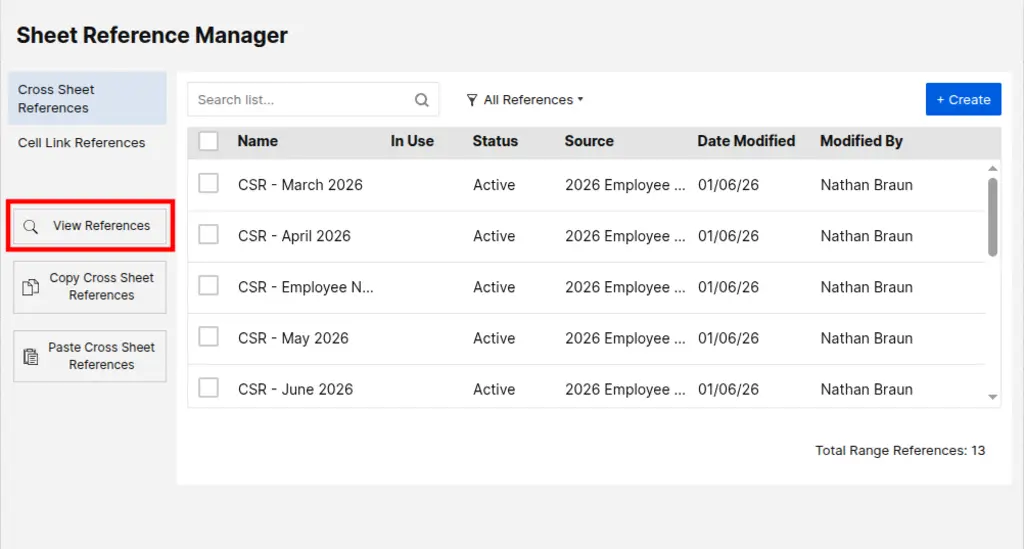
See Everything, Nothing Hidden
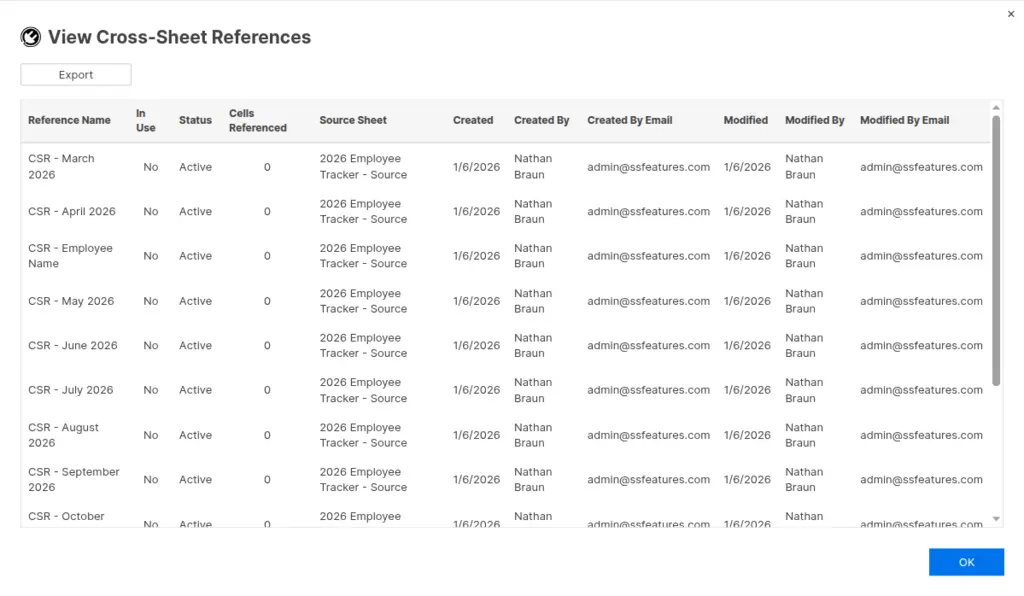
The SSFeatures viewer shows you all the information without cutting anything off. You can see:
- Reference Name - The full name, no matter how long
- In Use - Whether the reference is being used in a formula
- Status - Active, Broken, or other status
- Cells Referenced - How many cells the reference covers
- Source Sheet - The full name of the sheet it references
- Created - The date and time it was created
- Created By - The name and email of who created it
- Modified - When it was last changed
- Modified By - Who made the last change
Sort Your Data
Click any column header to sort your references. Click again to sort in the opposite direction. This makes it easy to:
- Find references that were recently modified
- Group references by source sheet
- See which references aren't being used
- Find references created by a specific person

Move and Resize Columns
You can drag columns to put them in any order you want. You can also resize columns to make room for the data you care about most.
Export to Excel
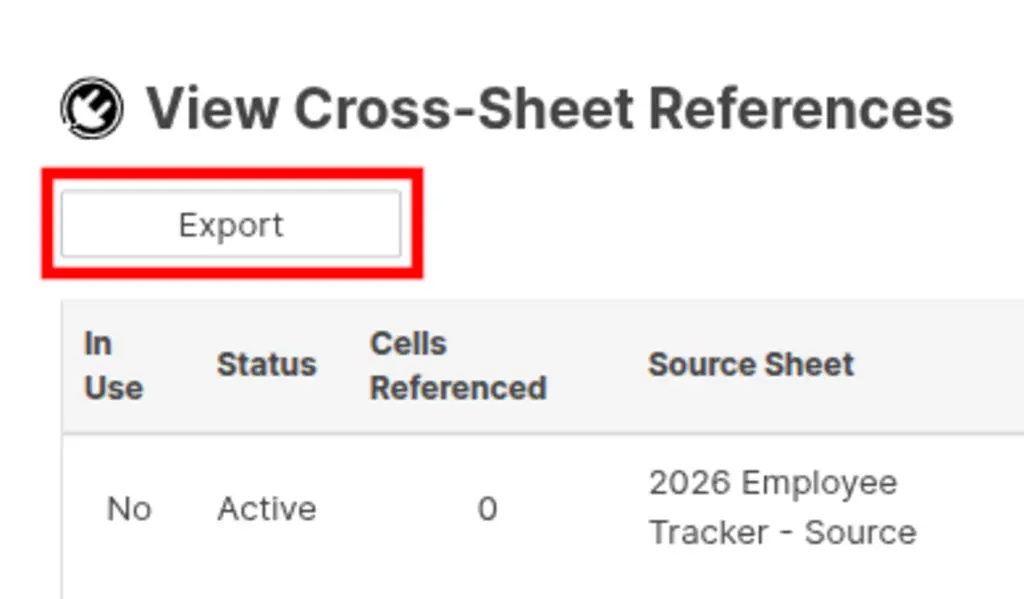
Need to create a report? Want to keep a log for data governance? Just click the Export button! SSFeatures creates an Excel file with all your reference data.
The Excel file uses the same order you set up in the popup. So if you sorted by "Modified" and moved columns around, the Excel file will look the same.
What can you do with the Excel export?
- Create documentation of all data connections in your sheets
- Build audit trails for compliance requirements
- Share reference information with team members who don't have SSFeatures
- Analyze patterns in how references are used across your organization
View Cell Links Too
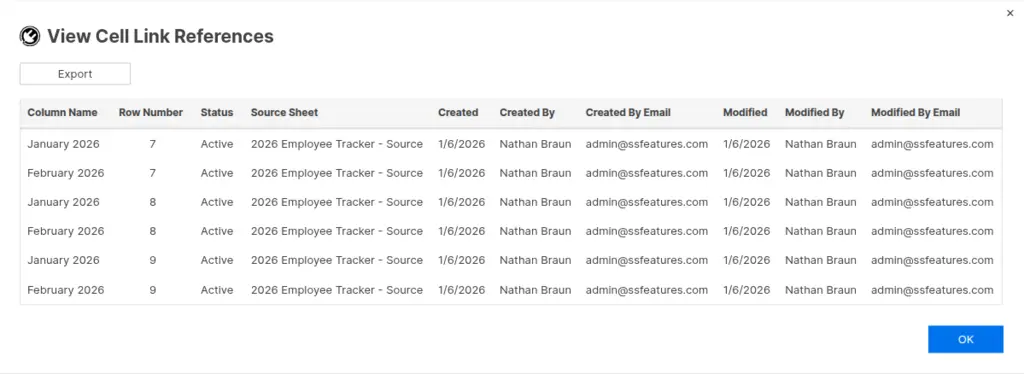
SSFeatures also has a viewer for cell links. Cell links work differently from cross-sheet references - they link individual cells instead of ranges. The viewer shows:
- Column Name - Which column the cell link is in
- Row Number - Which row the cell link is in
- Status - Whether the link is working
- Source Sheet - The full name of the source sheet
- Created/Modified - When and by whom
Demo Video
Frequently Asked Questions
Can I edit references from the viewer?
- No, the viewer is read-only. It's designed for viewing and exporting data. To edit references, use Smartsheet's built-in tools or the SSFeatures copy and paste feature.
What format does the Excel export use?
- The export creates a standard .xlsx file that works with Excel, Google Sheets, and other spreadsheet apps. The formatting is clean and ready to use immediately.
Is this useful for data governance?
- Yes! Many teams use the export feature to track their cross-sheet references. You can see who created each reference, when it was modified, and more. This is great for auditing and documentation. Some teams export their references monthly to track changes over time.
How do I find broken references quickly?
- Click the "Status" column header to sort your references. All broken references will group together, making them easy to identify and fix.
Can I see references from multiple sheets at once?
- The viewer shows references for one sheet at a time. If you need to see references across multiple sheets, you can export each sheet's references to Excel and combine them there.
Can you tell me more about the security and privacy of this feature?
- Absolutely. SSFeatures works entirely in your browser. It uses the same Smartsheet code that you already use. None of your sheet data is ever sent to our servers. The Excel file is created right in your browser and downloaded to your computer. Everything stays private and secure.
Solutions
Click Here to learn more about how this feature relates to Smartsheet as a whole.