Copy and Paste Cross-Sheet References Between Sheets
SSFeatures lets you copy cross-sheet references (CSRs) from one sheet and paste them into another. This can save you hours of work!
The Problem
Have you ever needed the same cross-sheet references on multiple sheets? In Smartsheet, there's no way to copy them. You have to recreate each one by hand.
This means:
- Opening the CSR popup on your new sheet.
- Finding the source sheet.
- Selecting the same columns.
- Typing the same name.
- Doing this for every single reference!
If you have 15 or 20 references, this could take an hour or more. And it's easy to make mistakes or forget one.
When do you need the same references on multiple sheets?
- Rolling out a template to multiple teams or projects
- Creating department-specific versions of a master sheet
- Setting up identical tracking sheets for different time periods
- Building multiple reports that pull from the same source data
The Solution with SSFeatures
SSFeatures adds Copy and Paste buttons for cross-sheet references. Here's how it works:
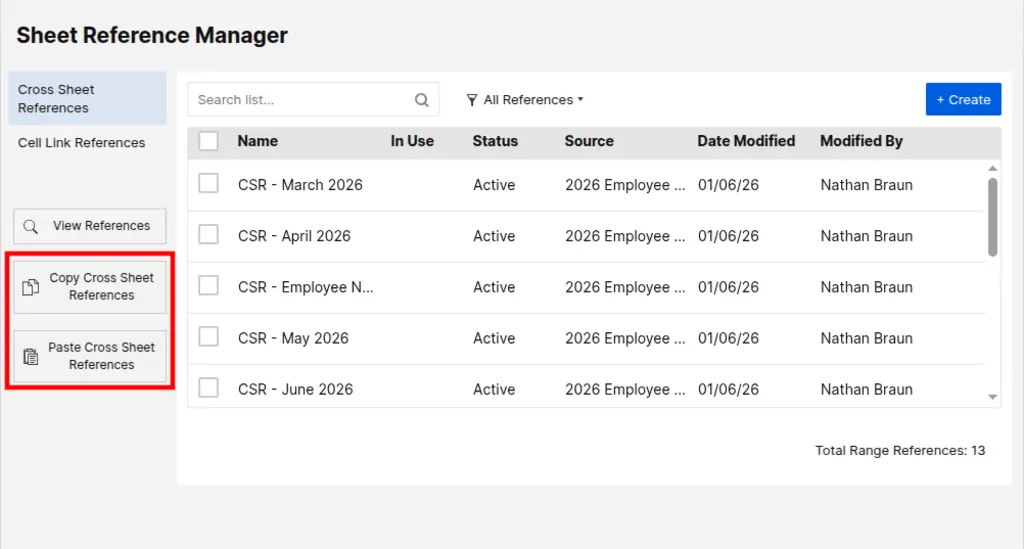
Step 1: Copy the References
- Go to the sheet that has the references you want to copy.
- Open the cross sheet references popup and click Copy Cross-Sheet References.
- A popup shows all your references in a nice table.
- Check the boxes next to the ones you want to copy.
- Click OK to copy them.
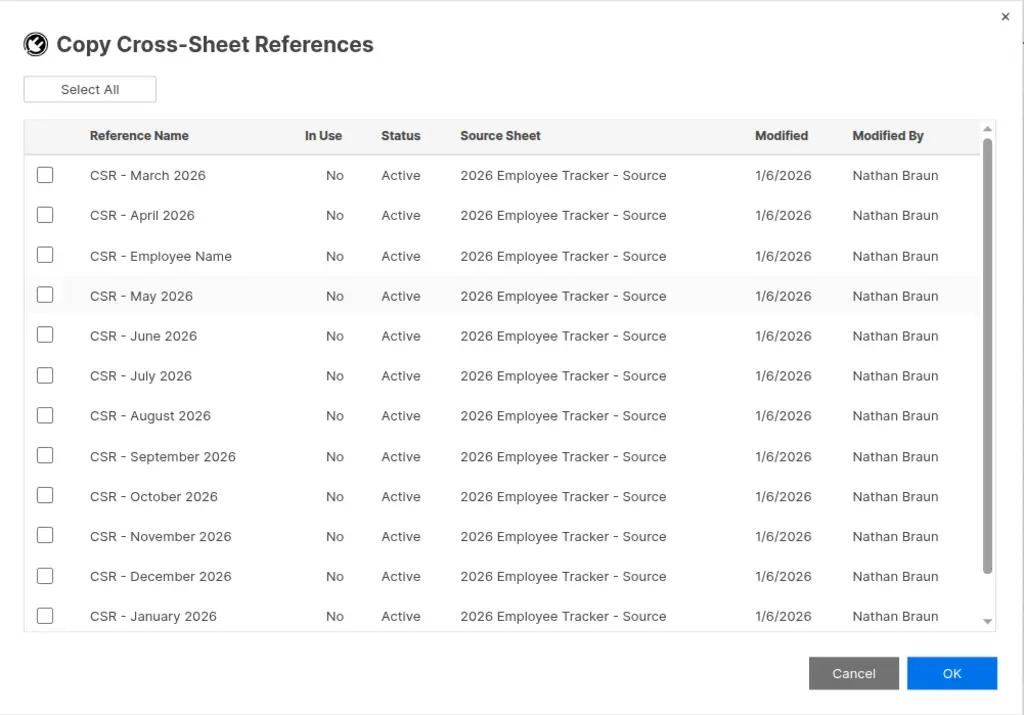
The table shows helpful information about each reference:
- The reference name
- Whether it's being used in a formula
- The status (Active, Broken, etc.)
- The source sheet name
- When it was last modified
You can sort the columns, resize them, and drag them around to find what you need quickly.
Step 2: Paste the References
- Go to the sheet where you want the references.
- Open the cross sheet references popup and click Paste Cross-Sheet References.
- SSFeatures shows you a preview of what will be created.
- Click Paste and you're done!
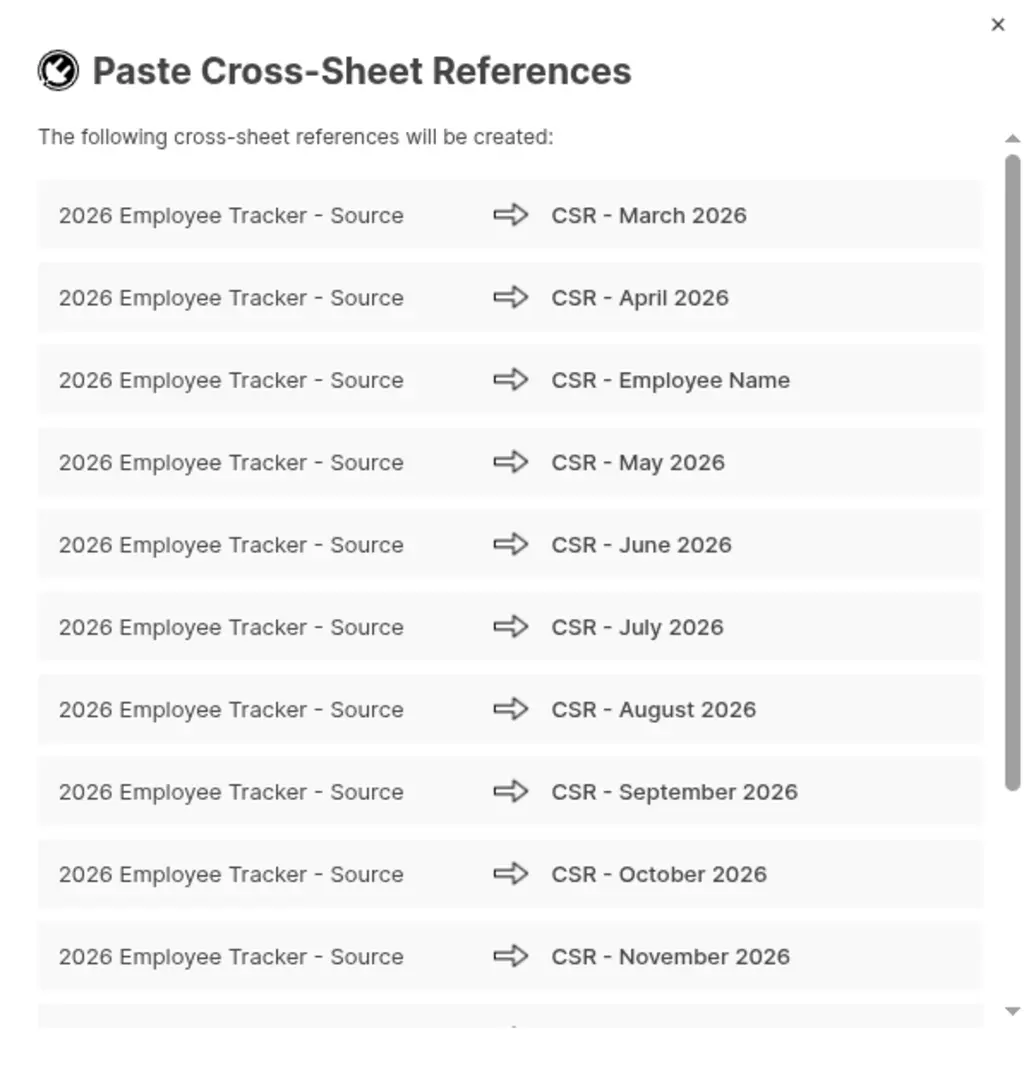
SSFeatures checks for problems before pasting:
- It tells you if a reference name already exists on the sheet.
- It tells you if a reference would point to the same sheet (which isn't allowed for cross-sheet references).
- It tells you if a name is too long.
Demo Video
Frequently Asked Questions
Do the references stay copied so I can paste them on multiple sheets?
- Yes! After you copy references, they stay saved until you copy new ones or close your browser. You can paste them on as many sheets as you need.
What if the source sheet doesn't exist anymore?
- SSFeatures will create the reference, but it will show as "Broken" in Smartsheet because it can't find the source sheet.
What if I try to paste a reference that already exists?
- SSFeatures checks for this before pasting. It will show you a warning and won't create duplicates. You can choose to skip those references or rename them.
What happens to formulas that use the copied references?
- Copying references doesn't copy formulas. You'll need to write new formulas on the destination sheet that use the pasted references. The good news is that the references will have the same names, so you can copy your formula text directly.
Can you tell me more about the security and privacy of this feature?
- Absolutely. SSFeatures works entirely in your browser. It uses the same Smartsheet code that you already use. None of your sheet data is ever sent to our servers. Everything stays private and secure. The copied references are stored in your browser only.
Solutions
Click Here to learn more about how this feature relates to Smartsheet as a whole.