Create Many Cross-Sheet References at Once
SSFeatures lets you create lots of cross-sheet references with just a few clicks. No more making them one by one!
The Problem
Cross-sheet references (CSRs) are super useful in Smartsheet. They let you pull data from one sheet into another using formulas like INDEX(MATCH()) or VLOOKUP(). But creating them is really slow!
If you want to create 10 cross-sheet references for 10 different columns, you have to:
- Open the CSR popup.
- Choose the source sheet.
- Select the column.
- Name the reference.
- Click OK.
- Repeat 9 more times!
This can take 10-15 minutes. And if you have 20 or 30 references to create? That could take an hour or more!
When do you need many cross-sheet references?
- Building a summary dashboard that pulls data from multiple sheets
- Creating formulas that look up values from a master data sheet
- Setting up metrics sheets that aggregate data across projects
- Connecting budget sheets to actual spending data
The Solution with SSFeatures
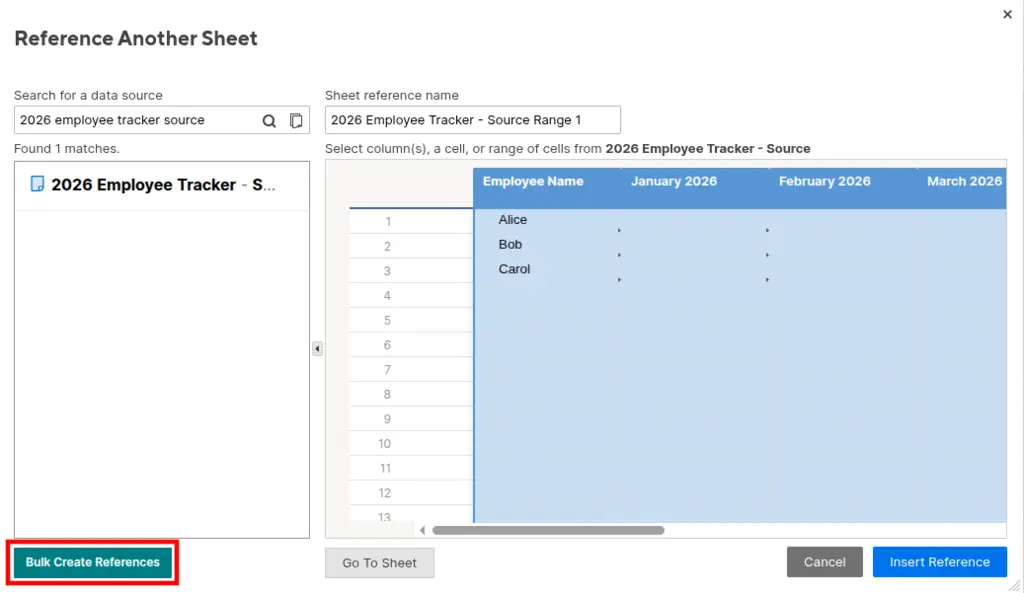
SSFeatures adds a Bulk Create References button directly inside Smartsheet's Cross-Sheet References popup. Here's how it works:
- Open any cell and start typing a formula.
- Click "Reference Another Sheet" (or open an existing cross-sheet reference).
- Choose the sheet you want to reference.
- Select all the columns you need (hold Ctrl/Cmd to select multiple).
- Look for the Bulk Create References button added by SSFeatures.
- Click it, and SSFeatures creates all the references for you!
Custom Naming Format
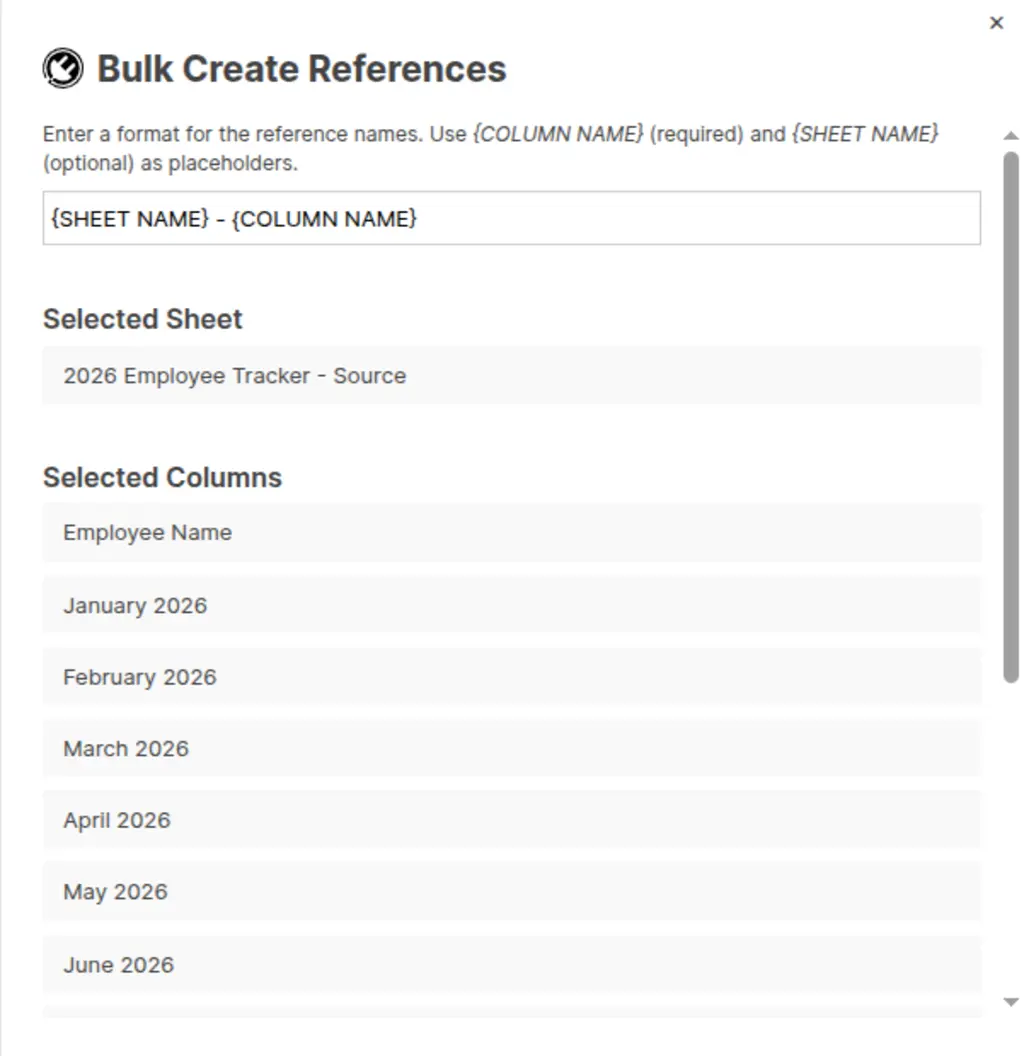
When you create references in bulk, you can choose how to name them. SSFeatures uses a simple format with two placeholders:
- {SHEET NAME} - The name of the sheet you're referencing
- {COLUMN NAME} - The name of each column
For example, if you use the format: {SHEET NAME} - {COLUMN NAME}
And you're referencing columns from a sheet called "Budget 2026", your references will be named:
- Budget 2026 - January
- Budget 2026 - February
- Budget 2026 - March
More format examples:
| Format | Example Result |
|---|---|
{COLUMN NAME} |
January |
{SHEET NAME} - {COLUMN NAME} |
Budget 2026 - January |
CSR_{COLUMN NAME} |
CSR_January |
{COLUMN NAME} from {SHEET NAME} |
January from Budget 2026 |
You can use any format you like! Just make sure to include {COLUMN NAME} so
each reference has a unique name.
Preview Before Creating
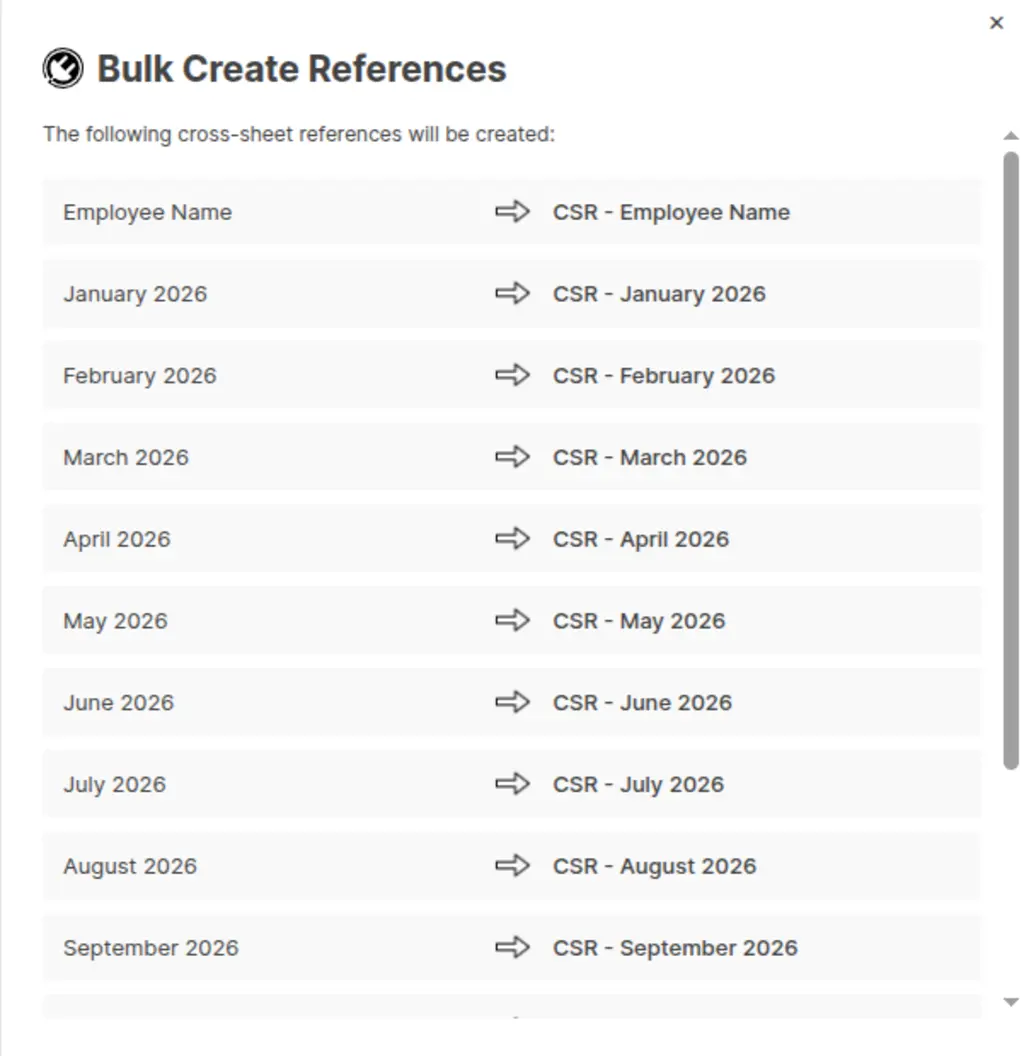
Before SSFeatures creates any references, it shows you a preview. You can see exactly what will be created. If something doesn't look right, just go back and change it.
Demo Video
Frequently Asked Questions
How many references can I create at once?
- You can create as many as you need! SSFeatures will create them one by one, but it's still much faster than doing it by hand. Creating 20 references takes just seconds instead of 20+ minutes.
What if a reference name is too long?
- SSFeatures will warn you before creating any references. Smartsheet has a limit on how long reference names can be (50 characters). If any names are too long, you can change your format to make them shorter.
What if a reference name already exists?
- SSFeatures checks for this too! It will tell you if any names already exist on your sheet, so you don't create duplicates.
Can I select columns from multiple sheets at once?
- No, you can only reference one sheet at a time. But you can repeat the process for each source sheet you need. It's still much faster than creating references one by one!
Will this work with all column types?
- Yes! You can create cross-sheet references for any column type in Smartsheet, including text, numbers, dates, dropdowns, and more.
Can you tell me more about the security and privacy of this feature?
- Absolutely. SSFeatures works entirely in your browser. It uses the same Smartsheet code that you already use. None of your sheet data is ever sent to our servers. Everything stays private and secure.
Solutions
Click Here to learn more about how this feature relates to Smartsheet as a whole.