Rename Many Columns at Once in Smartsheet
SSFeatures makes it super easy to rename lots of columns at the same time. This saves you hours of work!
The Problem
Renaming columns in Smartsheet can be really slow. If you need to rename 20 columns, you have to:
- Click on each column header.
- Edit the name.
- Save it.
- Repeat 19 more times!
This takes forever, especially if you have a lot of columns. It's also easy to make mistakes when you're doing it by hand.
Common situations where you need to rename many columns:
- Updating year labels (changing "2025" to "2026" across all columns)
- Adding prefixes to organize columns (like "Budget - " or "Q1 - ")
- Fixing typos or standardizing naming conventions
- Preparing a sheet for a new project or client
The Solution with SSFeatures
SSFeatures adds a Bulk Rename Columns button to Smartsheet. Click it, and a popup appears with three easy ways to rename your columns.
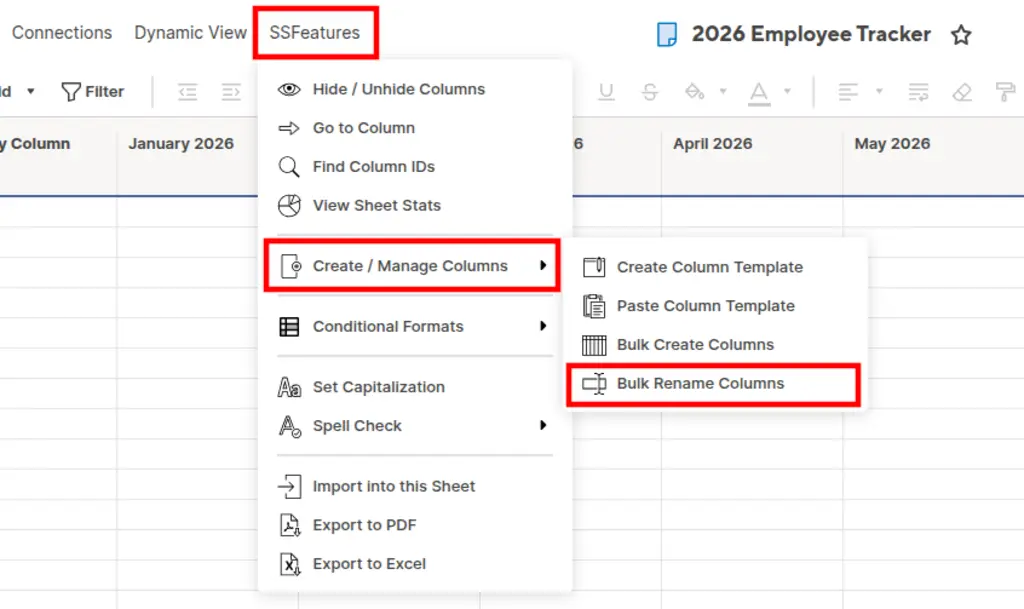
Mode 1: Bulk Rename
This mode lets you edit all your column names at once.
- Click Bulk Rename in the popup.
- Copy all the column names.
- Paste them into any text editor (like Notepad or Word).
- Make your changes.
- Paste the new names back into SSFeatures.
- Click OK and you're done!
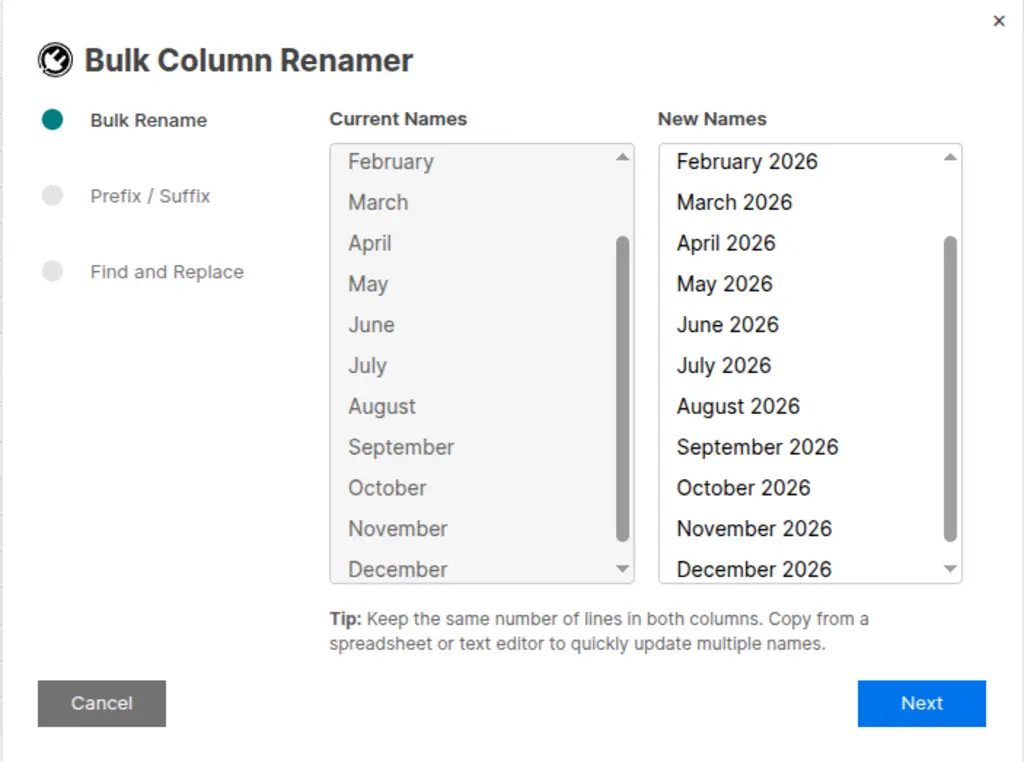
This is perfect when you need to make lots of different changes.
Pro Tip: Use AI to Help Rename Columns!
You can paste your column names into ChatGPT or another AI tool, tell it what you want (like "make these shorter" or "add the year 2026"), and paste the results back into SSFeatures. This makes renaming even faster!
Mode 2: Add Prefix / Suffix
This mode adds text to the beginning or end of every column name.
For example, if your columns are named:
- January
- February
- March
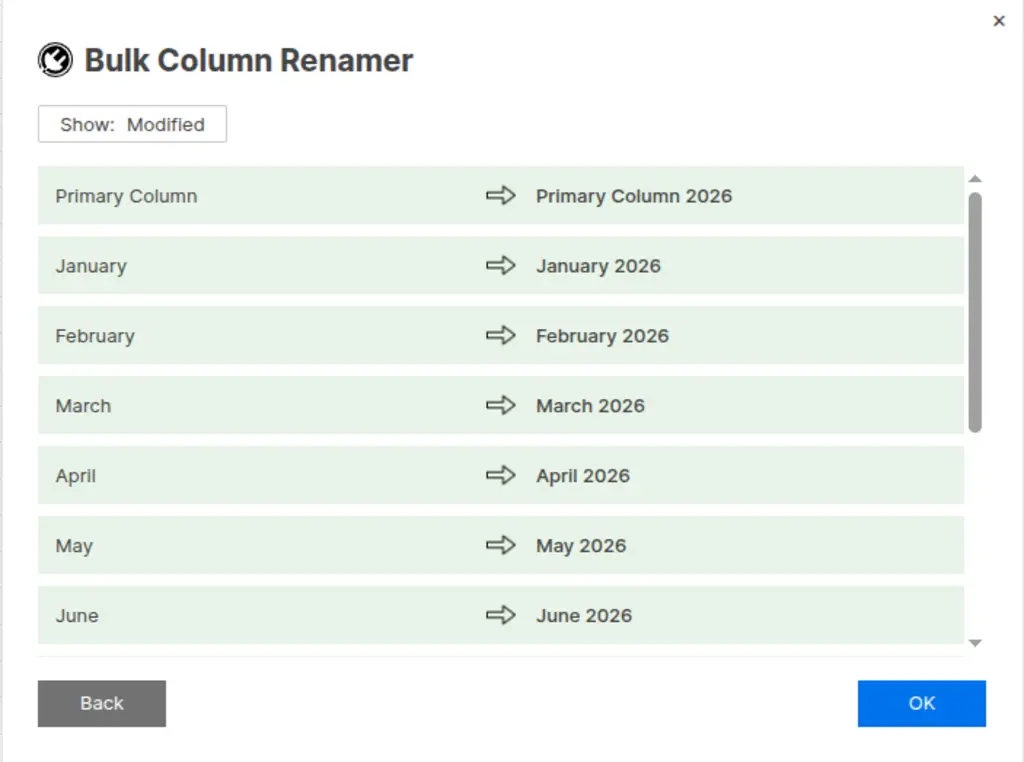
And you add " 2026" as a suffix, they become:
- January 2026
- February 2026
- March 2026
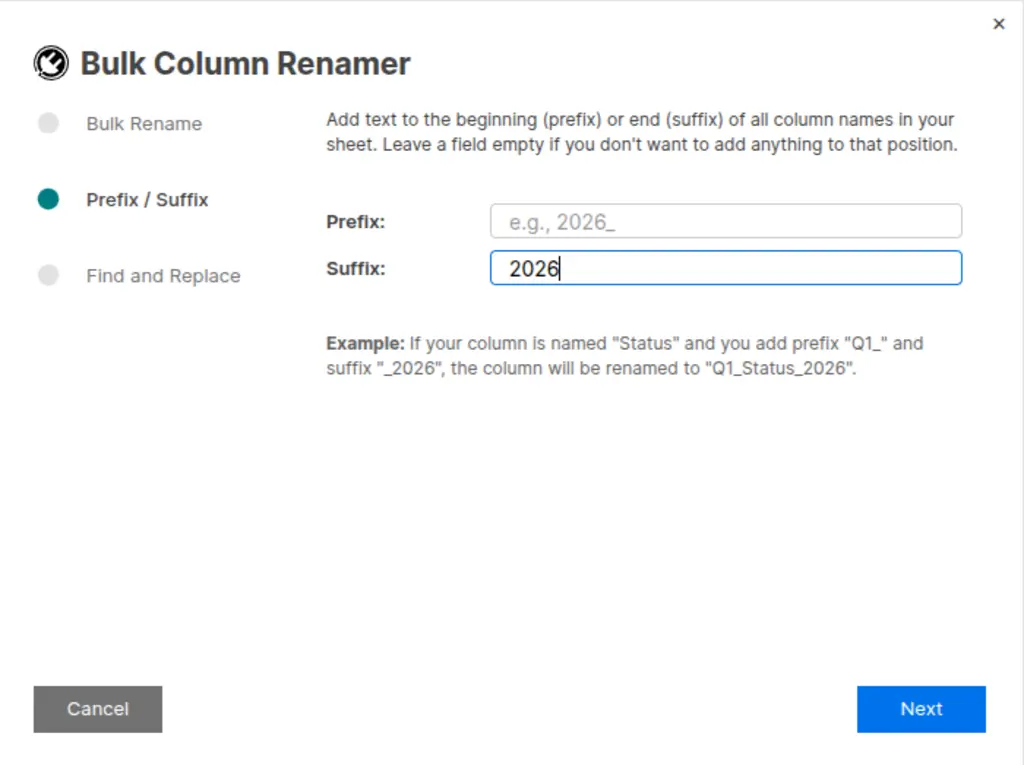
This is great when you want to:
- Add a year to all your columns (like "2026")
- Add a category (like "Budget - ")
- Add any other text to the start or end of column names
Mode 3: Find and Replace
This mode searches for specific text in your column names and replaces it with something else.
For example, you can:
- Change "2025" to "2026" in all columns
- Change "Draft" to "Final"
- Remove text by leaving the "Replace" field empty
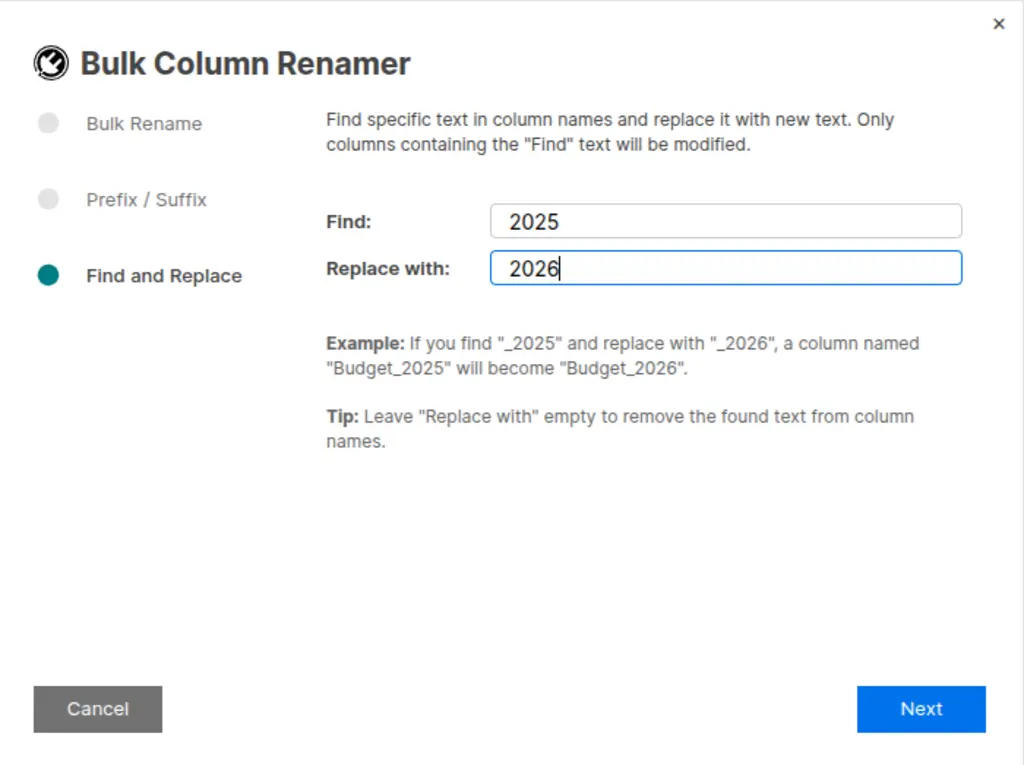
Which Mode Should You Use?
| If you want to... | Use this mode |
|---|---|
| Make many different changes at once | Bulk Rename |
| Add the same text to all column names | Add Prefix / Suffix |
| Change specific text in some columns | Find and Replace |
| Use AI to help rename | Bulk Rename |
Preview Before You Rename
Before SSFeatures renames any columns, it shows you a preview. You can see exactly what the new names will be. If something doesn't look right, just go back and fix it. This helps you catch mistakes before they happen.
Demo Video
Frequently Asked Questions
Can I undo the renaming if I make a mistake?
- Yes! You can use Smartsheet's undo feature (Ctrl+Z or Cmd+Z) right after renaming to undo the changes.
Will this affect my data?
- No, this only changes the column names. All your data stays exactly the same. Your formulas that reference these columns will still work.
Can I rename just some columns, not all of them?
- Yes! You can choose which columns to include. In Bulk Rename mode, just edit the names you want to change.
What if two columns end up with the same name?
- SSFeatures checks for this in the preview step. It will warn you if any column names would be duplicates, so you can fix them before renaming.
Can you tell me more about the security and privacy of this feature?
- Absolutely. SSFeatures works entirely in your browser. It uses the same Smartsheet code that you already use. None of your sheet data is ever sent to our servers. Everything stays private and secure.
Solutions
Click Here to learn more about how this feature relates to Smartsheet as a whole.